

Introduction
The Server-to-Server (S2S) UPI Intent integration eliminates redirection hops by initiating transactions from your backend. Deliver a seamless checkout experience while maintaining control and confidence for your customers.No Redirect Hops
Initiate transactions directly from your server to improve user experience
Flexible Intent Invocation
Call the Initiate Payment API when the user selects an app (Mobile) or scans a QR code (Desktop)
Robust Server Callbacks
Receive asynchronous status updates via server-to-server callbacks
Intent Invocation
Intent invocation is simply the act of packaging your UPI payment details (amount, payee VPA, reference, etc.) into a deep-link URI and then launching the user’s UPI app directly from your front end. With a specific intent, you target a known app (e.g. Google Pay), while a generic intent lets Android show an app picker (on iOS it falls back to the default handler), all without bouncing users through extra web redirects.Prerequisites
Before you begin, ensure you have:- Credentials: Your Client ID and Client Secret
- Domain Whitelist: Whitelisted your website domain for integration
- Webhook URL: A secure endpoint to receive payment status updates
- Callback URL: A publicly accessible URL configured in your EximPe dashboard for server-to-server callbacks.
- cURL or HTTP Client: Capability to make HTTPS
POSTandGETrequests from your server. - UPI Knowledge: Familiarity with UPI intent URL parameters and encoding.
- User selects UPI App (Mobile) or QR Code (Desktop) on your frontend.
- Frontend calls your Backend to initiate the payment.
- Backend calls EximPe Initiate Payment API to get the
intent_uri. - Backend returns
intent_urito the Frontend. - Frontend invokes the UPI Intent on the customer’s device.
- Check UPI transaction status via API or Webhook.
Step 1: Payment Page UI
Design your payment page to allow users to select their preferred UPI method.Desktop (PC)
On desktop browsers, prepare a container to display a QR Code. When the user proceeds, you will generate this QR code from the intent URI.Mobile (Android & iOS)
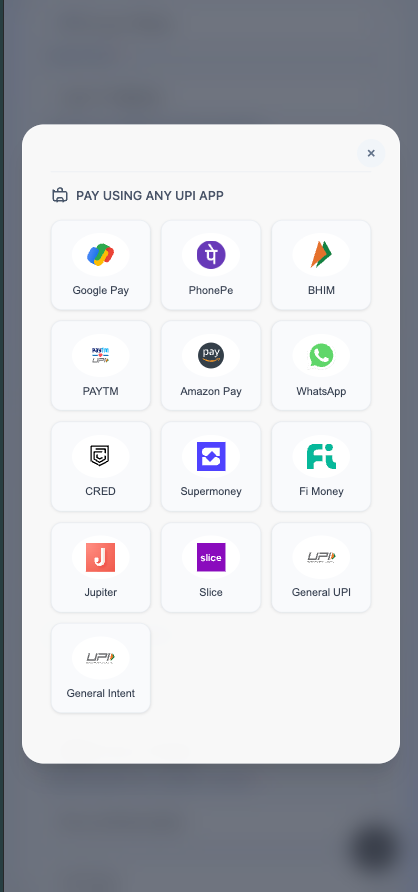
Step 2: Initiate Payment
When the user clicks on a specific UPI app icon (e.g., Google Pay) on mobile or selects “Show QR” on desktop, your backend should call this API to generate theintent_uri.
Sample UPI Intent Request Body
For the S2S UPI Intent request, you must include these additional parameters beyond the standard checkout fields:
collection_mode: must be set to"s2s"upi_flow_type: must be set to"intent"buyer.ip_address: the customer’s device IP addressbuyer.user_agent: the customer’s browser or app user-agent string
S2S UPI Intent Response
order_id: Unique order identifierintent_uri: UPI intent link that can be used to open UPI apps directly
Step 3: Invoke UPI Intent
The method for invoking a UPI payment depends on the customer’s device and operating system.Desktop (PC)
On desktop browsers, use theintent_uri to generate a QR Code. The user can then scan this code with their mobile UPI app to complete the payment.
Implementation:
- Prefix the
intent_uriwithupi://pay? - Use a QR code generation library or API to convert the full URI into a QR code image.
- Display the QR code prominently with instructions like “Scan to Pay”.
Mobile (Android & iOS)
For mobile devices, use theintent_uri to directly launch the customer’s UPI application. This provides a seamless experience without manual data entry.
1. Specific App Invocation (Android & iOS)
To target a specific app, use the following schemes:
Android Specific App Format:
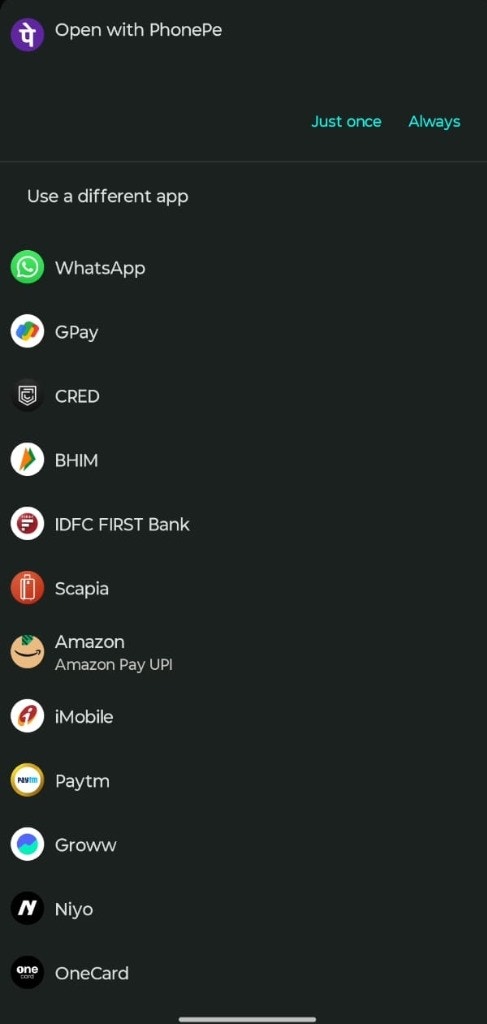
2. Generic Intent Invocation
If you want to allow the user to choose from any available UPI app or use their default handler, use the following scheme:
Example:
- On Android: Invoking
upi://pay?will open the system’s app tray (the “Complete action using” dialog), allowing the buyer to select from all installed UPI apps.
- On iOS: Invoking
upi://pay?will directly open the default UPI app configured on the device.
Pro Tip: For the best user experience, detect the user’s device type. Show a QR code on Desktop and a list of UPI apps (or a “Pay via UPI” button) on Mobile.
Step 3: Check UPI Transaction Status
Invoke the Order Status API to retrieve the status of the UPI transaction:For detailed parameters and response formats, see the Get Order API